
Help guide
Making your magazine, step by step.
Everything you need, from opening your template to holding it in your hands.
Part one
Make it
-
1Open your templateTap Open in Canva in your order email, then tap Edit template. Canva makes your own copy, so the original always stays safe.
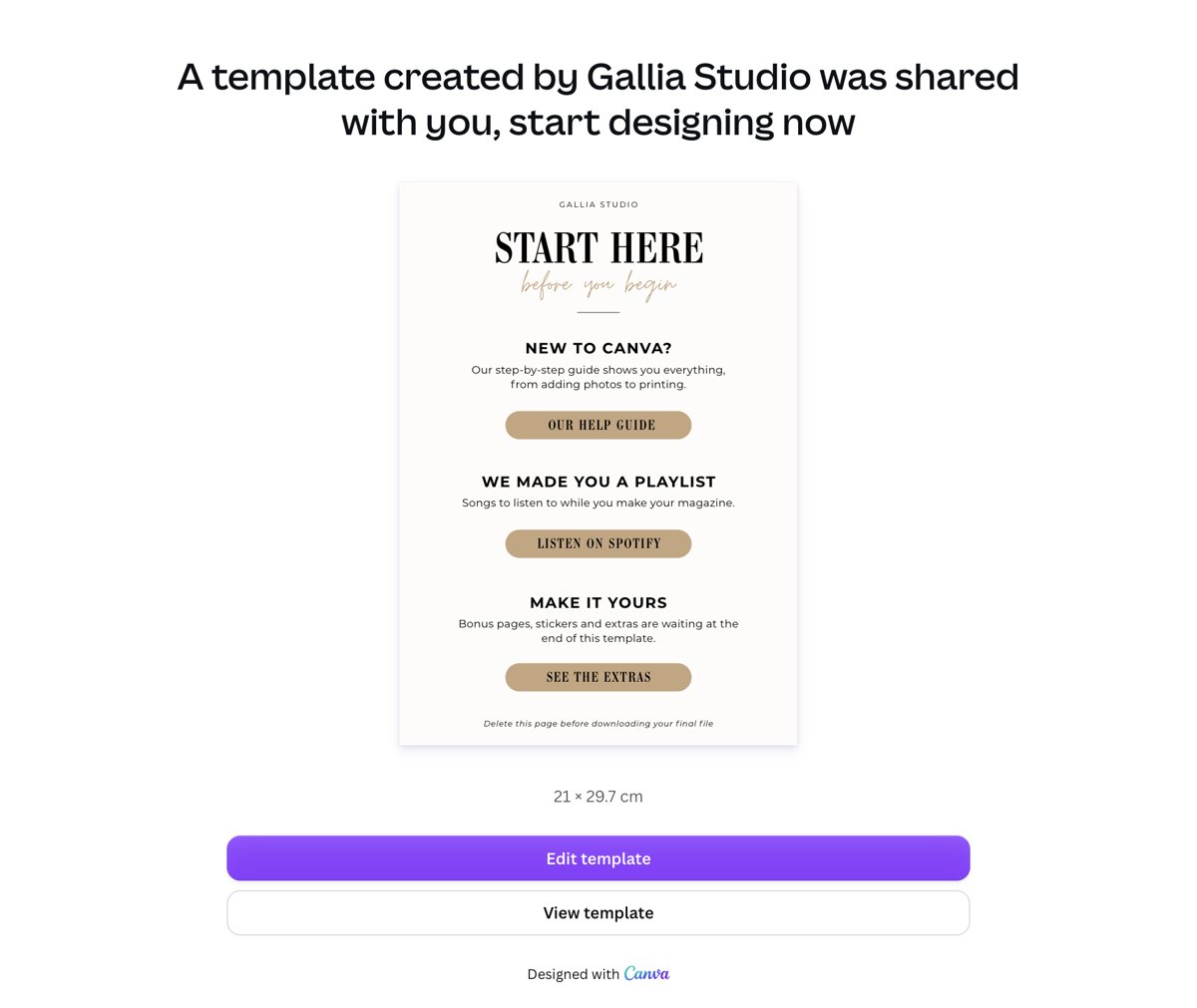 Not opening? Tap “Copy link” in your email and paste it into Safari or Chrome. It works with a free Canva account.
-
2Add your photosUpload your photos in Canva, then drag each one onto a photo frame. It snaps into place. Double-tap to adjust the crop.
-
3Write your storyDouble-tap any text to replace names, dates and stories. Delete the little “add your photo here” notes once you're done.
-
4Make it yoursAt the end of your template you'll find bonus pages and extras to mix in. Copy what you like onto your pages, delete any page you don't need, and put everything in your final order.
-
5Download itTap Share → Download. Choose PDF as the file type, select Print, then tap Download. That's the file you'll print.
Part two
Print it
1. Do a final check
- Read every page once: names, dates, spelling.
- Keep text away from the page edges so nothing gets cut, and let full-page backgrounds go all the way to the edge.
- Delete the “Start here” page, plus the bonus pages and extras you didn't use.
2. Get your page count right
For a stapled magazine, the total number of pages, covers included, must be a multiple of 4 (40, 44, 48…). Add or remove a page if needed.
3. Choose where to print
- With Canva
- Often the simplest. Once your template is finished, order it printed straight from Canva (Share → Print). Availability depends on your country.
- Local print shop
- Send your PDF and ask for a magazine or booklet print.
- At home
- Fine for a quick version. Use thick matte paper and print double-sided.
4. What to ask a print shop
- Size
- A4, or US Letter if you used that version
- Pages
- Silk or matte paper, around 130–170 g/m²
- Cover
- Thicker paper, around 250–300 g/m²
- Binding
- Staples up to about 60 pages, glued spine above
Always check your print shop's own requirements before ordering.
Part three
FAQ
Do I need Canva Pro?
No. Every page works with a free Canva account.
The link says “access not authorised”
Tap “Copy link” in your order email and paste it into Safari or Chrome, logged into your Canva account. Some mail apps open links in a private window.
Can I edit on my phone?
Yes, with the Canva app. For a whole magazine, a computer is much more comfortable.
Can I make more than one magazine?
Yes, for personal use. Open the template link again and tap Edit template to get a fresh copy.
I lost my order email
Write to hello@gallia-studio.com with the email you used to order, and we'll send your links again.
Is this a physical product?
No. This is a digital template, so nothing will arrive in the mail. You'll receive everything you need by email to create it in Canva.
How do I access my template?
Right after your purchase, you'll receive an email with your access link. Click it to open your template in Canva.
What can I edit?
Pretty much everything: photos, text, names, dates and colors.
Can I print it?
Absolutely. Print it at home or send your PDF to your favorite print shop. Printing costs are not included.
Still have questions?
Email us at hello@gallia-studio.com, we'll be happy to help.